Choose the tab source
Open RecEase from the tab you want to capture, select the current tab, and confirm the browser source.
 RecEase practical guide
Capture a browser tab, its sound, and optional microphone narration locally—without an account, upload service, watermark, subscription, or paid feature gate.
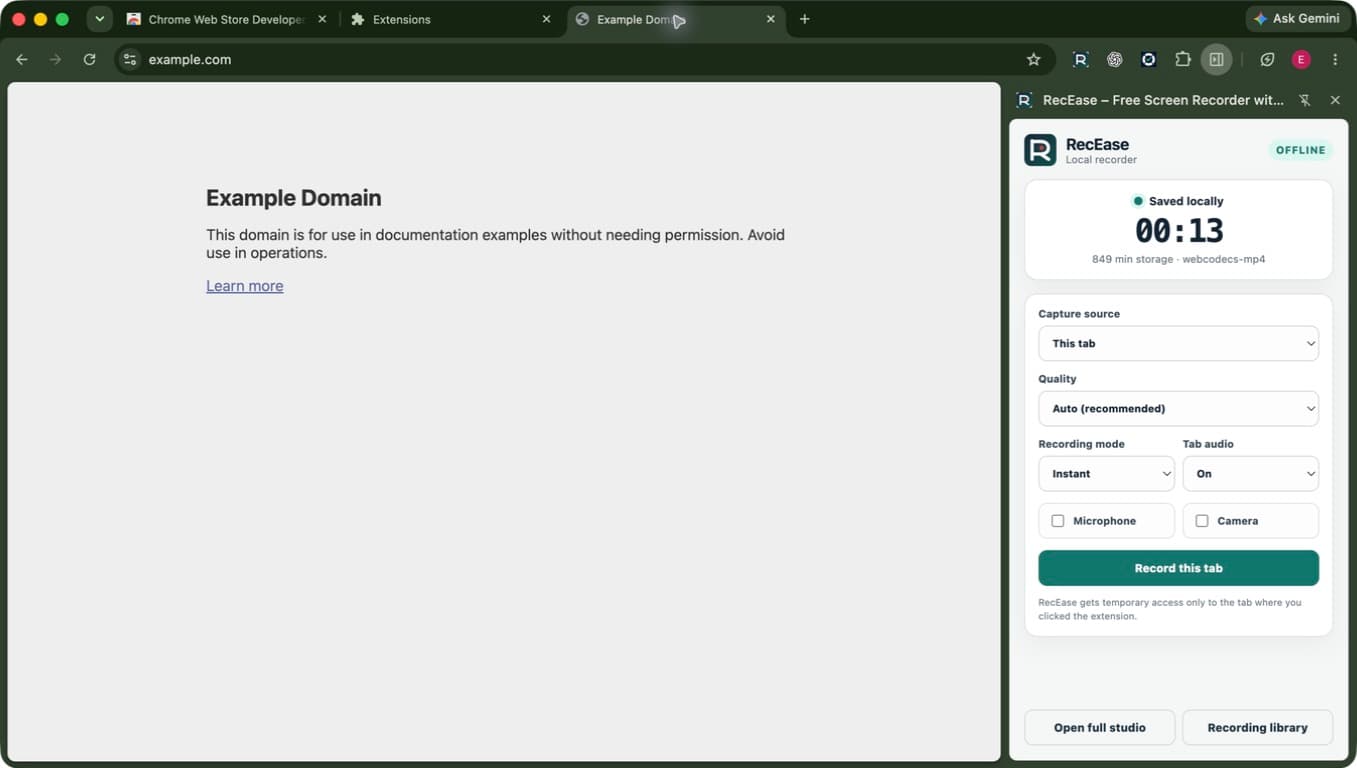
Three-step setup
A short preflight catches the most common mistake: choosing a screen or window when you intended to capture one tab and its audio.
Open RecEase from the tab you want to capture, select the current tab, and confirm the browser source.
Enable source audio. Add your microphone only when the recording also needs narration.
Use the preflight preview, make a short test, and confirm playback before starting a long take.
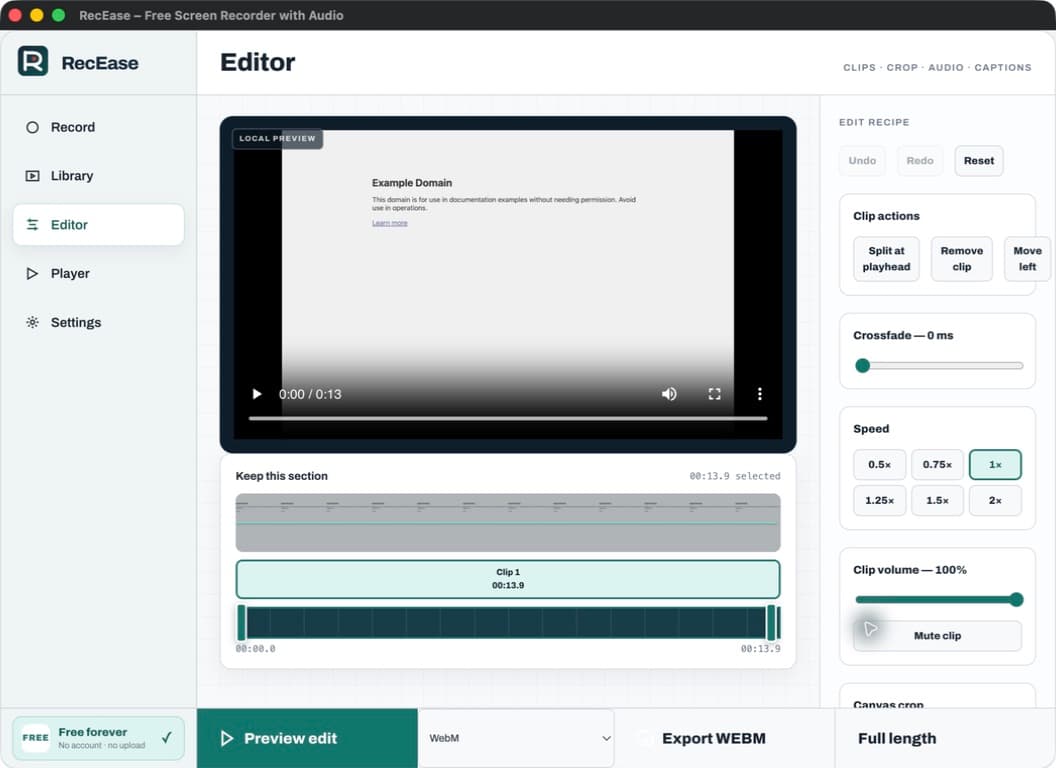
Keep the result on your device
After recording, trim mistakes, adjust audio, add captions or text, and export a supported MP4 or WebM locally. The original remains unchanged while you edit.
Before you record
RecEase gives you recording controls; it does not grant consent or rights to capture meetings, people, music, video, or private information.
Read the privacy policyChrome tab audio questions
Yes, when Chrome exposes tab audio for the source and you enable source audio before recording. Browser, operating-system, and protected-content restrictions can still affect availability.
No. RecEase records and keeps its working data in your Chrome profile. A recording leaves the device only when you deliberately download or export it.
No. RecEase 2.0.1 has no watermark, account, subscription, paid feature gate, or RecEase recording-time limit.
Chrome may not expose audio for every source, operating system, protected stream, or hardware configuration. Re-open the source chooser, select a browser tab, and verify the audio option before recording.

Ready for a short test?